
Reviewing a Request
How do I see requests I have received, and what do Accept, Decline and Counter do?
1 min readUpdated November 5, 2026
When someone sends you a request, you get a DM and a badge on the bell. This is how to read it and answer.
Find Your Requests#
Click the bell at the top of any page. A number means something is waiting on you.
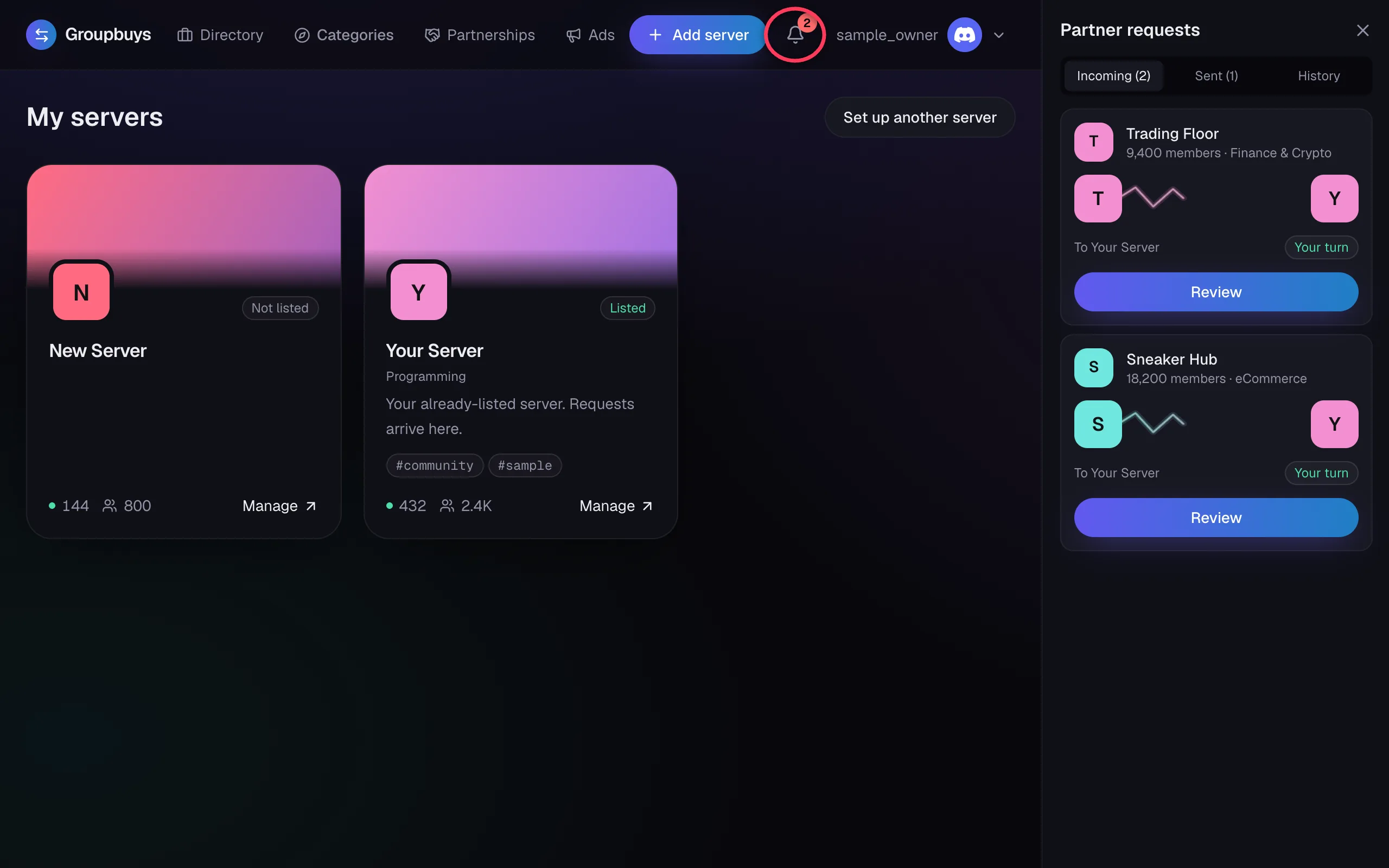
The panel has three tabs:
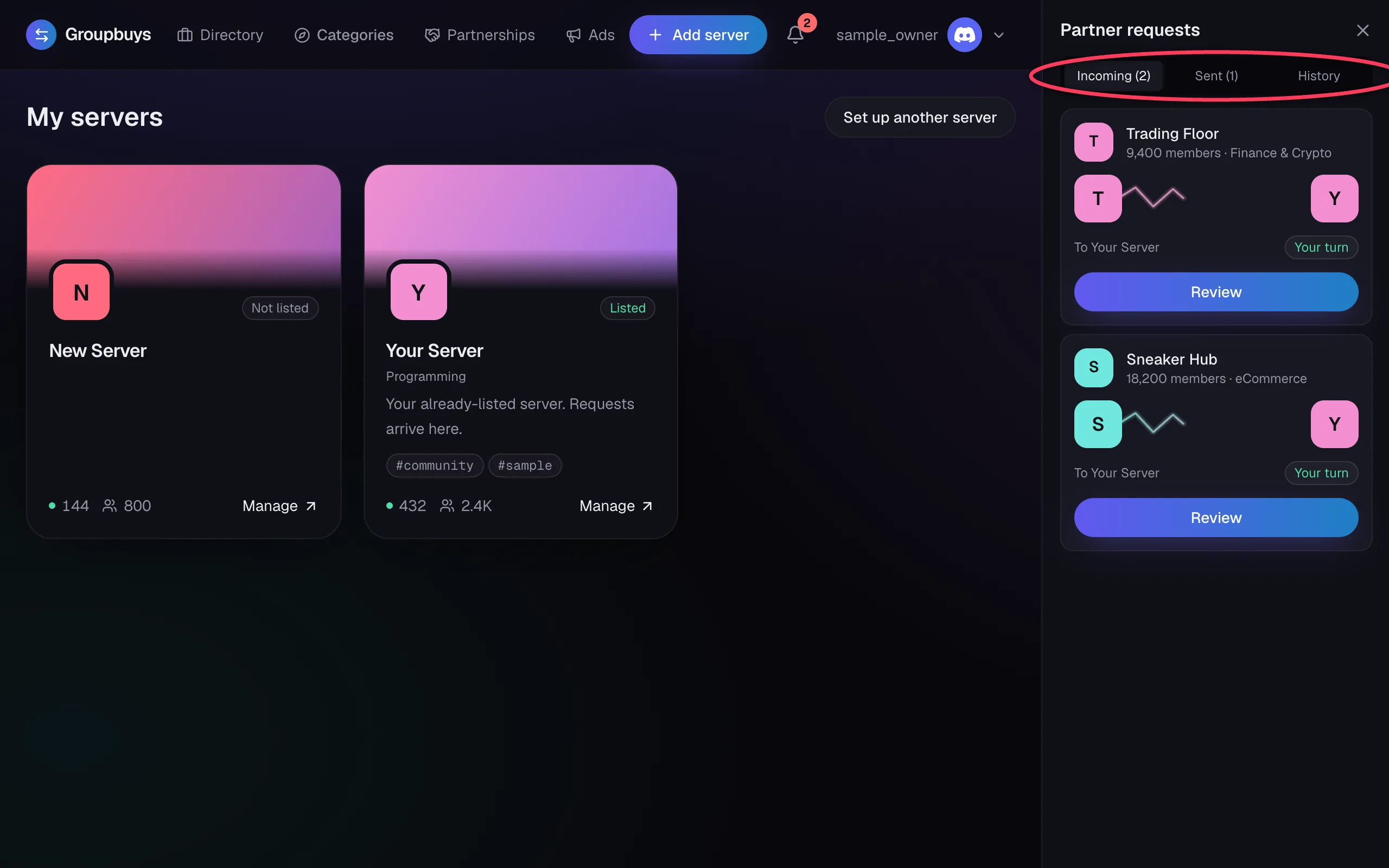
- Incoming: requests sent to you.
- Sent: requests you sent. Counters to your request show up here.
- History: everything that has finished.
Read the Terms#
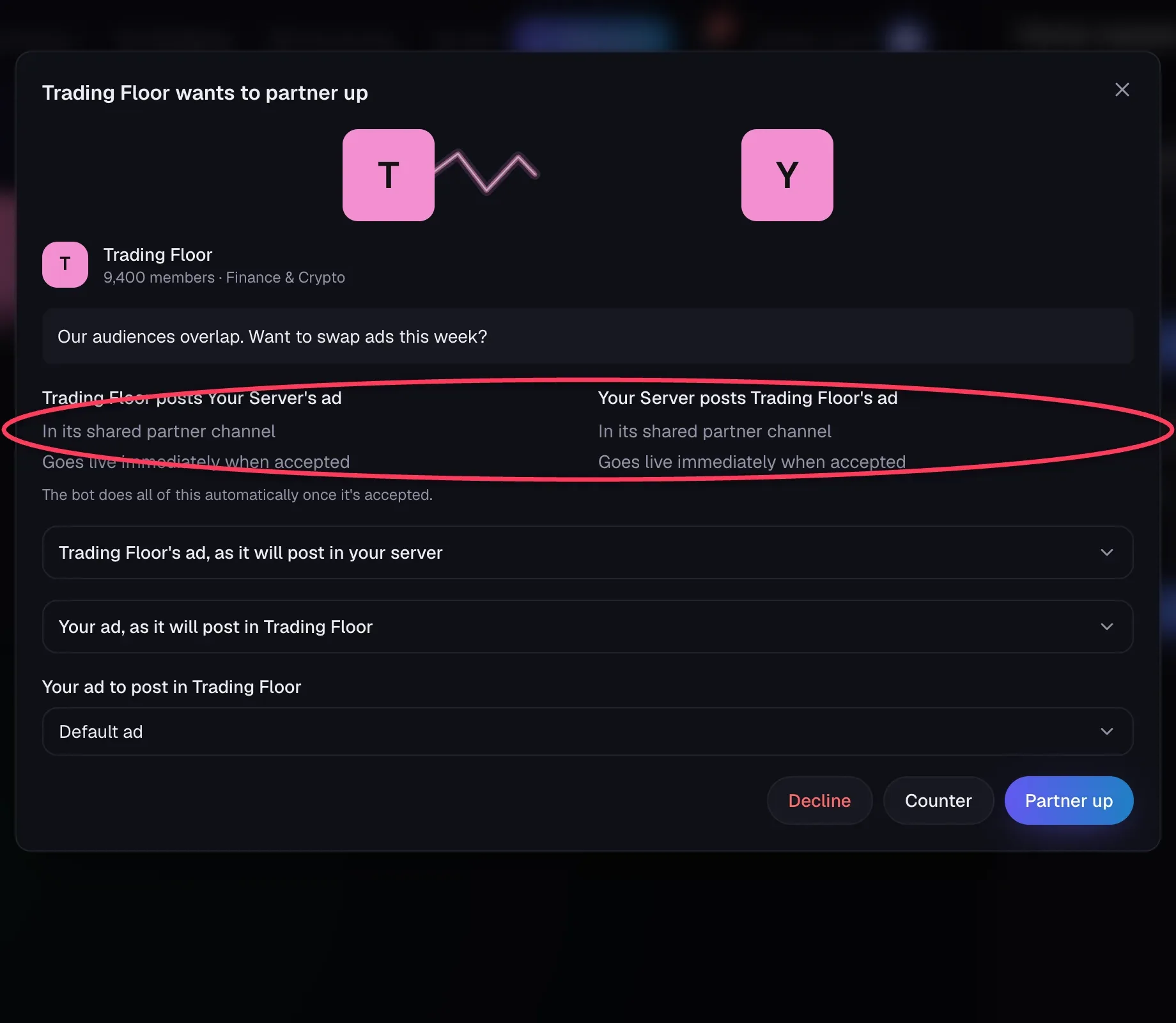
Click Review. The terms say what each server will do, in plain words: where the ad goes, when it goes live, and any add-ons.
Check Both Ads#
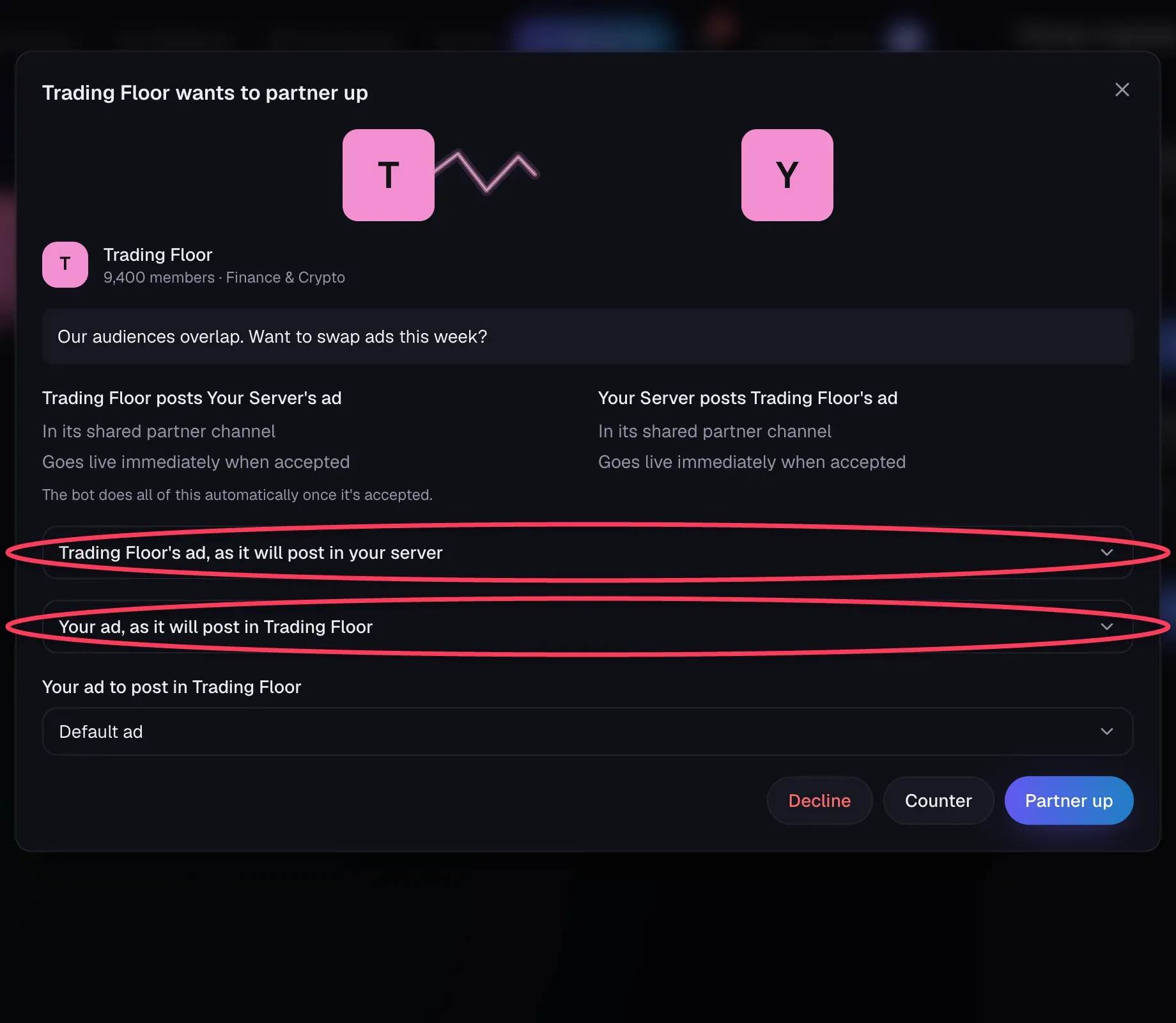
Both ads are hidden until you open them. Click a row to see exactly how the ad will look. If you run more than one ad, choose yours under Your ad to post.
Note
The ad that posts is the version you reviewed. If they edit their ad afterwards, it doesn't change this deal.
Answer#
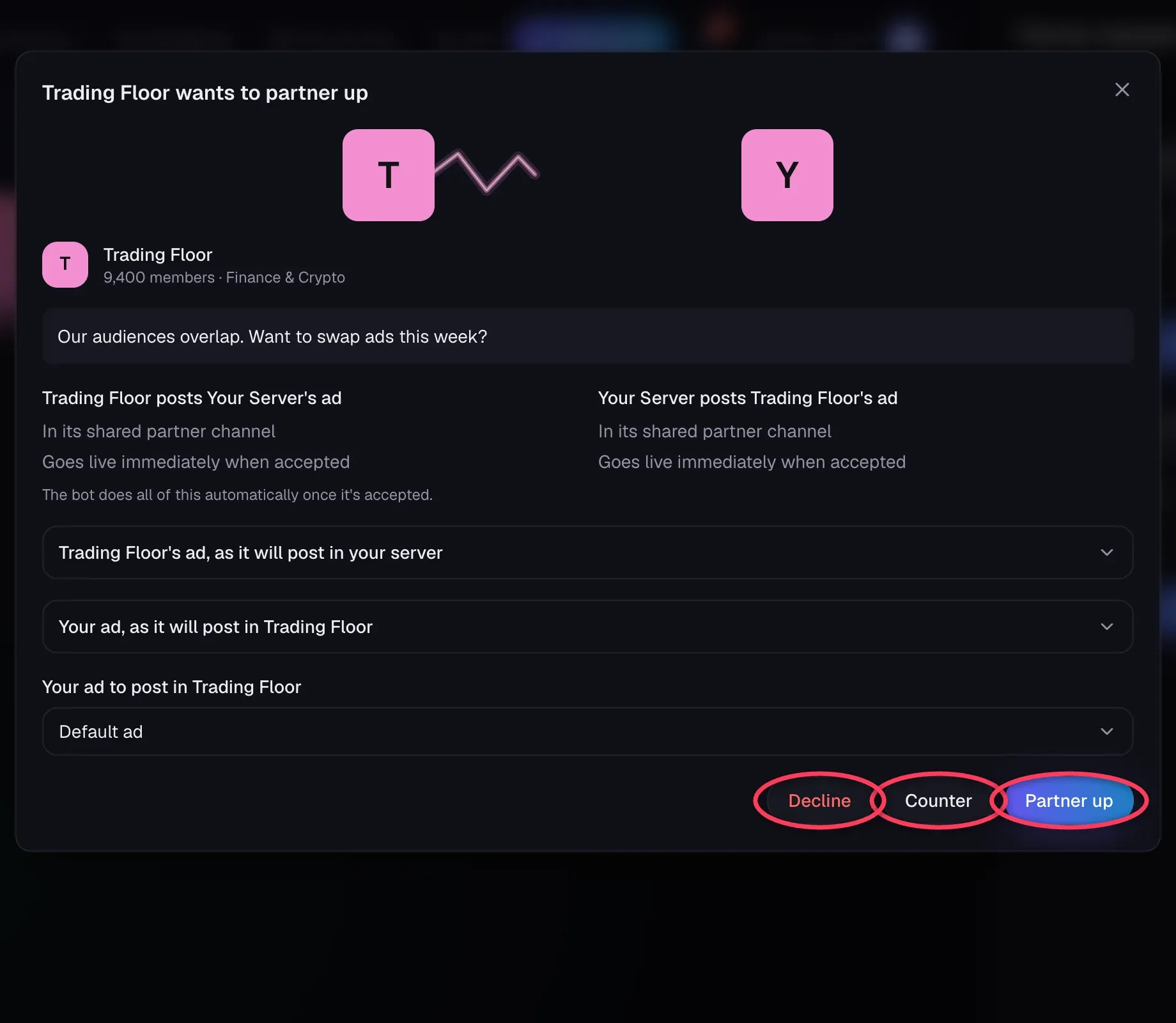
| Button | What it does |
|---|---|
| Partner up | Accepts these exact terms. The bot posts right away, or on the scheduled date |
| Counter | Sends it back with changes. See Countering a Request |
| Decline | Passes on it. They're told, and neither of you can ask the other again for 7 days |
Requests don't expire, so take your time.
Still stuck?
Talk to a person. Open a support ticket in our Discord, or ask the community there.